Shape editor
The Shape tab is where you design scratch patterns by drawing them. A shape is the two signals every scratch is made of: where the record is, and how open the deck’s channel is. Shapes you make here can be played from this tab or triggered from Rack pads.
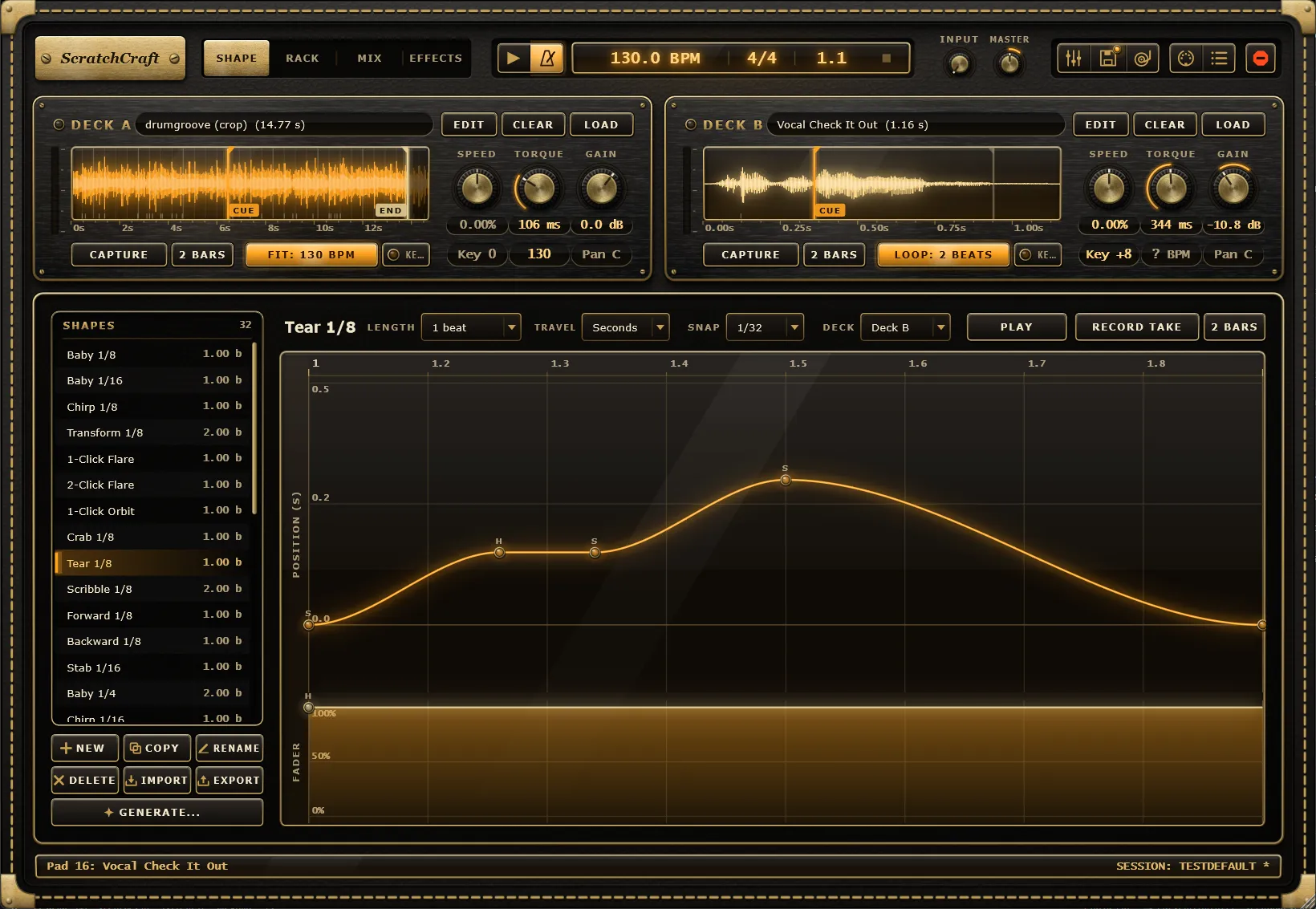
The two lanes
Section titled “The two lanes”The editor shows the selected shape as two lanes stacked on a beat grid. Time runs left to right in beats, with the grid drawn at the Snap division.
- Position (the upper lane) is where the needle sits in the sample, measured from the deck’s cue point. The bright line at zero is the cue; higher values are further into the sample. A rising line plays the record forward, a falling line drags it back, and the steeper the line, the faster the record moves. The lane’s caption shows its unit: POSITION (S) for seconds or POSITION (BEATS). The deck’s end marker appears as a line labelled END, and the sample’s transients show as small ticks on the right edge.
- Fader (the lower lane) is how open the deck’s channel is, from closed at the bottom to open at the top. Use it to cut the sound in and out, as your crossfader hand would.
Editing nodes
Section titled “Editing nodes”Each lane is a line through nodes. Edit them with the mouse:
- Double-click an empty spot to add a node, or double-click a node to remove it.
- Drag a node to move it. It snaps to the grid and, in the position lane, to the deck’s markers and transients. Hold Alt while dragging to place it freely. In the fader lane a snapped node is either fully open or fully closed.
- Right-click a node to set the curve of the segment that starts there: Linear, Smooth or Hold (step). In the fader lane the same menu sets the node’s level to 0, 25, 50, 75 or 100%; Alt+drag sets any level in between. Delete node is in this menu too.
- Right-click an empty part of a lane for Add node here and Clear lane.
- Press Delete or Backspace to remove the selected node.
- Ctrl+Z undoes an edit and Ctrl+Y redoes it.
The toolbar
Section titled “The toolbar”| Control | Range | Default | What it does |
|---|---|---|---|
| Length | 0.5, 1, 2, 4, 8 or 16 beats | Depends on the shape | How long the shape is. Shapes always count time in beats, so they follow tempo changes. |
| Travel | Seconds, Beats, Deck | Seconds | The unit the position lane is measured in (see below). |
| Snap | 1/2, 1/4, 1/8, 1/8T, 1/16, 1/16T, 1/32, 1/32T | 1/16 | The grid nodes snap to. It only affects editing, not pad timing. |
| Deck | Deck A, Deck B | Deck B | The deck that Play and Record Take use. |
| Play | On / off | Off | Loops the selected shape on the chosen deck. |
| Record Take | Records a Freestyle performance into a new shape. See Recording takes. |
Travel: Seconds, Beats or Deck
Section titled “Travel: Seconds, Beats or Deck”Travel decides how far the record moves when the tempo changes.
- Seconds scratches the same slice of the sample at any tempo, so a chirp on a word stays on that word. This is the default, and the right choice for most scratches.
- Beats measures travel in beats, so the distance grows and shrinks with the tempo.
- Deck counts beats like Beats, and also follows the deck’s speed (its Speed setting, or the tempo fit when Sync Loop is on) when the shape plays the deck’s own sample. Use it for shapes that play the record along, so they stay in tune with the deck.
Switching between them rescales the nodes, so the shape sounds the same at the current tempo.
Playing a shape
Section titled “Playing a shape”Play loops the selected shape on the deck chosen in Deck, whichever tab you’re looking at.
- Switched on while the song plays, the shape locks to the song position: it starts again on every multiple of its length, and stops when the transport stops.
- Switched on while the song is stopped, it plays straight away on its own free-running clock, and stops the next time the song stops.
Play is a host parameter (Shape Play), so you can automate it or MIDI-learn it. The header’s Stop all button switches it off. With DAW Sync on, stopping the song stops it and playing the song starts it again.