Interface tour
ScratchCraft’s window has the same frame in every mode: a header across the top, the two deck strips under it, the current mode’s view in the middle and a status bar at the bottom. This page names each part and points to where it is covered in detail.
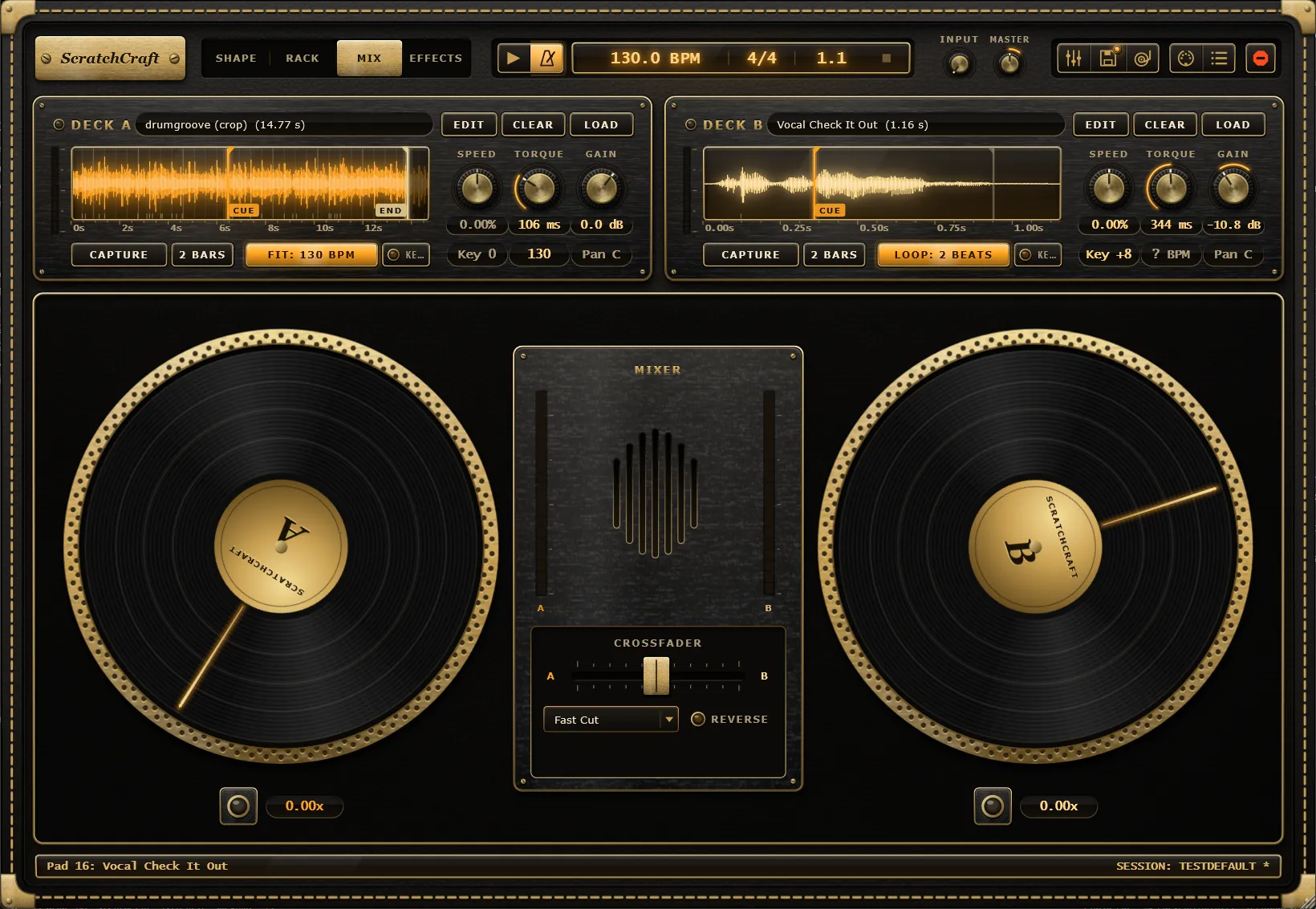
The header
Section titled “The header”From left to right:
Nameplate
Section titled “Nameplate”The brushed-gold ScratchCraft nameplate. Click it for About and the UI size menu, which scales the whole window to 75, 90, 100, 125 or 150 %. See UI scale.
Mode switch
Section titled “Mode switch”A slide switch with four positions:
| Position | What it shows |
|---|---|
| Shape | The Shape editor, for drawing scratch patterns. |
| Rack | The 32 performance pads and the pad inspector. |
| Mix | The two platters and the crossfader, for live scratching. |
| Effects | Each deck’s effect rack. |
Each position can be MIDI-learned on its own, so a controller button can jump straight to a mode.
Transport pod
Section titled “Transport pod”In the standalone app: the play/stop and click buttons, then the transport readout with tempo and time signature. See Standalone transport.
In a plugin host: the DAW Sync toggle, then a readout of the host’s transport. See DAW Sync.
Input and Master
Section titled “Input and Master”Two knobs. Input sets how loudly you hear the incoming audio (the sidechain in a plugin host, the mic or line input in the standalone app) so you can monitor what you are about to capture. It starts at 0 %. Master is the output volume, from -60 dB to +12 dB (default 0 dB).
Panel buttons
Section titled “Panel buttons”Three joined buttons that open panels:
- Mixer (the faders icon, or Ctrl+M) shows or hides the mixer drawer with each deck’s EQ and filters. While the drawer is closed, a jewel on the button shows that a deck’s EQ or filters are in use.
- Sessions (the disk icon) opens the session states window. A jewel shows while the current state has unsaved changes.
- Feel (the record-and-tonearm icon) opens the Feel window: options for how the decks play.
MIDI buttons
Section titled “MIDI buttons”- MIDI Learn (the MIDI socket icon) starts learning: click a control, then move a knob on your controller. See MIDI Learn.
- MIDI Map (the list icon) lists and edits every mapping. See MIDI Map.
Stop all
Section titled “Stop all”The red stop button on its own at the right. It stops every pad and Shape and both platters, and switches both motors off. See Stop all.
The deck strips
Section titled “The deck strips”Under the header, deck A sits on the left and deck B on the right. The strips are visible in every mode. Each one has three rows:
- Top row: the Motor jewel, the deck name, the sample name (click it to open the sample library), then Edit, Clear and Load.
- Middle: a level meter, the waveform with its seconds ruler and beat grid, and the Speed, Torque and Gain knobs.
- Bottom row: Capture and the capture length, Sync Loop and the Keep pitch lamp under the waveform; the Key pill under Speed, the BPM pill under Torque and the Pan pill under Gain.
See Decks for what each control does.
When the mixer drawer is open, it appears as a row directly under the deck strips, and the window grows by its height.
The mode view
Section titled “The mode view”The large area in the middle shows whichever mode the mode switch selects: the Shape editor, the Rack, the Mix view or the Effects racks.
The status bar
Section titled “The status bar”The strip along the bottom of the window has up to three parts:
- Status messages on the left: what just happened, such as a capture finishing, a sync result or a warning about a sample that was cut short.
- Hints in the middle while you hover over something that has keyboard or mouse help, such as the Shape editor’s keys.
- The current session state on the right, as SESSION: NAME, with
*when it has unsaved changes. Hover over it to see the state’s file.