Pads and banks
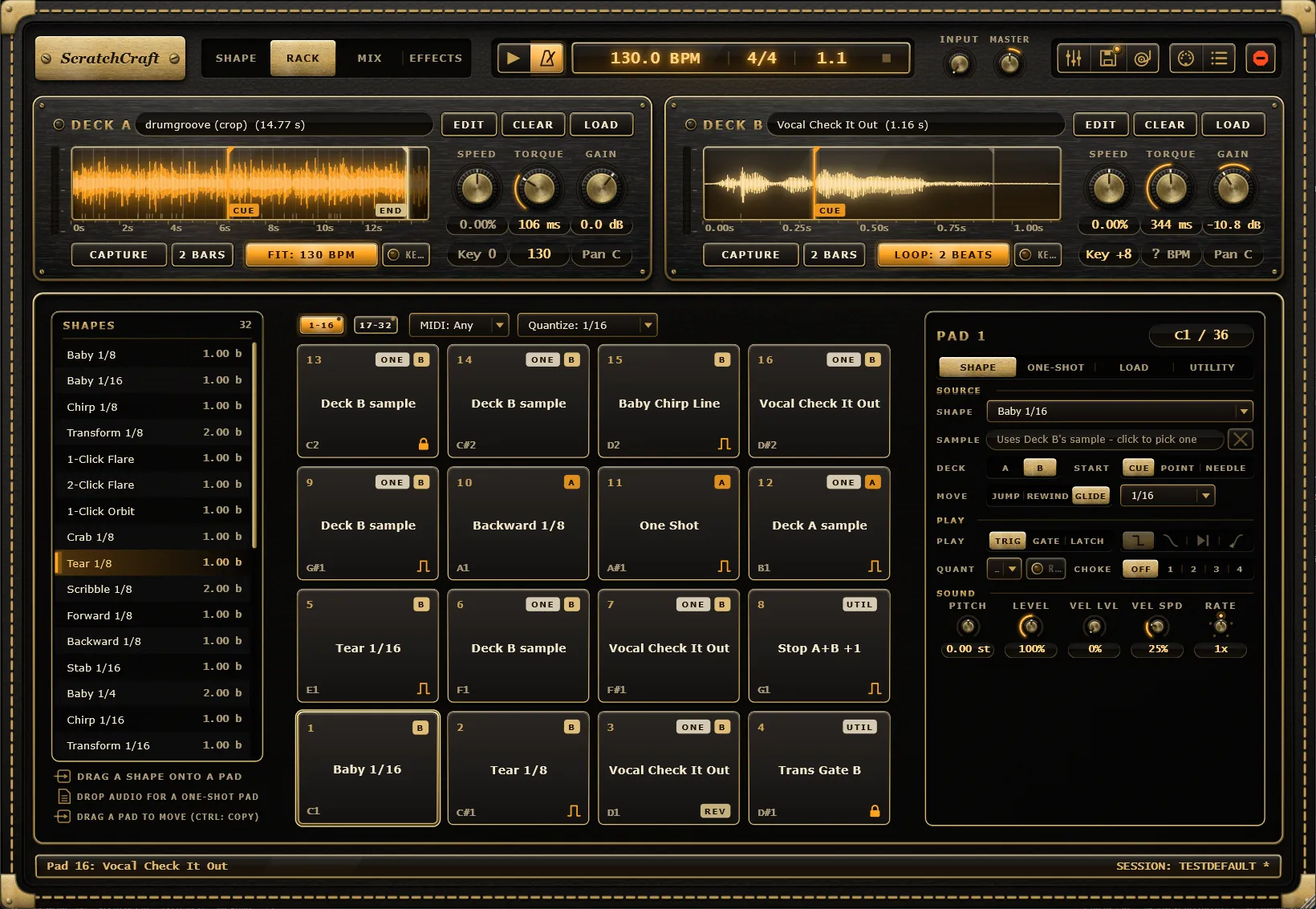
The Rack tab turns ScratchCraft into a pad instrument. It has 32 pads you play with MIDI notes or the mouse, and each pad can scratch a shape, play a sample, load a deck or run deck and mixer actions. This page covers the pads themselves; Pad modes covers what each one can do.
Two banks of 16
Section titled “Two banks of 16”The 32 pads are split into two banks shown one at a time on the 4x4 grid. Switch banks with the 1-16 and 17-32 buttons above the pads. Pad 1 (and pad 17 on the second bank) sits bottom-left.
- A bank button lights while a pad on its bank is playing, so you can see the other bank is busy.
- A bank button shows a dot when any of its pads is set up.
Both bank buttons can be MIDI-learned, so a controller button can flip banks. The visible bank is saved with your project.
New projects start with factory shapes on pads 1 to 16; pads 17 to 32 start empty.
Playing pads
Section titled “Playing pads”- Click a pad to play it. Clicking nearer the edge plays it softer: a click at the centre is full velocity, falling to 25% at the corners.
- Alt+click selects a pad for editing without playing it.
- Play pads from MIDI notes. Each pad has its own note.
Clicking or playing a pad selects it in the inspector on the right, where you edit its settings.
Notes and MIDI channel
Section titled “Notes and MIDI channel”By default the pads play from C1 to G3 (MIDI notes 36 to 67, Ableton naming): pad 1 is C1, pad 2 is C#1, and so on up to pad 32 on G3. The note is printed in the bottom-left corner of each pad.
To change a pad’s note, either:
- click the note pill beside the pad number at the top of the inspector, then play a note (the pill shows PLAY A NOTE while it waits), or
- right-click the pad, choose Learn Note, then play a note.
The MIDI selector above the pads sets which channel pad notes listen on: MIDI: Any (the default) or MIDI: Ch 1 to Ch 16. Pick a channel to keep the rest of your controller’s notes free for MIDI mappings.
Moving and copying pads
Section titled “Moving and copying pads”- Drag a pad onto another to swap them. A press still plays the pad; once the mouse moves a few pixels it turns into a drag and the pad stops sounding.
- Hold Ctrl as you drop to copy the pad instead. If that would replace a pad you’ve set up, ScratchCraft asks first.
- To move a pad to the other bank, hover it over that bank’s button while dragging. The rack switches banks and you can drop it.
Notes stay with their slots. Moving a pad moves its settings and sound, but each slot keeps its MIDI note, so your controller layout doesn’t change.
You can also drop a shape from the shapes list or an audio file onto a pad to set it up. See Shape files and Pad modes.
Reading a pad face
Section titled “Reading a pad face”A pad lights while it plays and pulses while it waits for its quantize step. Its face shows:
| Where | What you see |
|---|---|
| Top left | The pad number. |
| Top right | The deck it plays on (A or B), or M, P or PL for a one-shot playing off the decks as Mono, Poly or Platter. Next to it, the mode: ONE (one-shot), LOAD (deck load), UTIL (utility), or SMP for a Shape pad with its own sample. |
| Centre | The shape or sample name. Utility pads show their first action, such as “Motor A+B”, plus “+N” for the others. |
| Bottom left | The pad’s MIDI note. |
| Bottom right | A Gate or Latch glyph, a choke chip (C1 to C4), REV and XF for reversed and crossfader-ignoring one-shots, a pulsing ARMED or REC while a capture into the pad is waiting or recording, and MISSING or LOADING when its sample isn’t available yet. |
Empty pads show a dashed outline with a hint: DROP SHAPE, DROP AUDIO or ADD ACTION, depending on their mode. A deck load pad glows softly while its sample is on the deck.